
Snap User Guide
Snap Overview
Industry-standard snapping for Unity. Snap to vertex, edge center, and surface, using axis constraints and layer masking for simplicity and precision. Create and snap to custom grids for complete control.
Snap is a simple “augment” to the standard Move tool. Just enable snap when you need it, disable when you don’t.
Opening the Snap UI
- Open the Overlays Menu or Overlays Toolbar
- Enable “Snap”
Basic Usage
Using Snap is very simple – no custom tooling required.
- Select the standard Unity Move tool
- Enable the primary Snap toggle
The handle visuals will change – this indicates Snap is active. Drag on the handles as usual, and your selection will snap. Disable the primary Snap toggle anytime.
Snap UI Sections
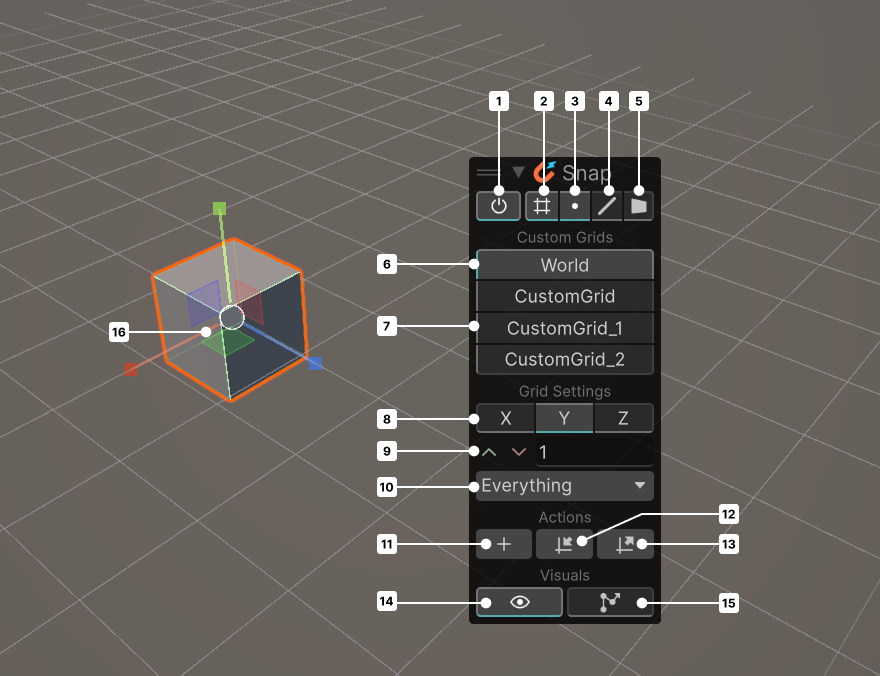
- Toggle Snap functionality (top-level toggle)
- Toggle Grid snapping
- Toggle Vertex snapping
- Toggle Edge Center snapping
- Toggle Surface snapping
- World (default) grid
- Custom grid options
- Grid visual plane
- Grid size
- Snap layer mask (for vertex, edge, surface)
- Create New Custom Grid from Selection
- Push Selection to Grid
- Pull Grid to Selection
- Toggle Grid Visibility
- Toggle Grid Follow
- Snap handles
Snap Types
Snap uses 4 “target types”:
- Grid – visible grid intersections
- Vertex – mesh vertices
- Edge Center – center points of mesh edges
- Surface – surfaces/faces on meshes
You can combine these however you like, eg vertex and grid or just grid.
Custom Grids
The selected Grid determines what directions you can move, and where the snap happens.
Grid Settings
These settings are stored per-Grid
- Visual Plane – purely visual, no functional change to Snapping
- Size – the size of the grid. Use the up/down buttons to double/half, or type a value directly.
- Layer Mask – determines what layers to use or ignore when snapping to mesh targets (vertex, edge, surface).
Actions
- Create New Custom Grid From Selection – creates the Grid using object position and orientation
- Push Selection to Grid – push all selected items directly their closest grid position
- Pull Grid to Handle Position – pulls the grid visual to the (nearest possible) handle location
Grid Visual Toggles
- Show Grid – toggles whether the grid is visible or not
- Grid Follow – toggles whether the grid visual sticks with the handle