
Merge
This is it folks. No more scene or prefab merge conflicts. Work in teams without fear – no special workflows or extra work required. It really does “just work”.
Currently free to try! Please let know if you have any questions or feedback.
See the Install page for details. Questions or concerns? Ask around on our friendly Discord server!
How it Works
- Jane and Alex are editing a scene
- Jane saves, commits, pulls, then pushes their changes to Git
- Alex saves, commits, and pulls from Git
Normally, this is where a merge conflict happens – not with Merge! (naming TBD, it’s tough)
- Merge is installed and connected to your git installation (a simple, common “git merge driver” for Unity)
- It auto-merges the changes, property-by property – no merge conflict, everybody wins!
But wait – isn’t that just exactly what Unity YAML Merge / Smart Merge does?
- Actually … yes! And that’s a feature! We re-use Unity’s provided merge solution, for 100% accuracy and simplicity
So, why should you use Overdrive Merge? Many reasons!
- We do a complete “3 way merge comparison”, to know exactly who made which changes
- We give you complete pre-Pull comparison details, peace of mind BEFORE you merge
- We solve the critical issue of ID collisions (Unity YAML Merge fails often without this)
- We (soon!) allow you to “stash and re-apply” specific changes for surgical care in a merge
- We painstakingly built a friendly UI to show things like “You disabled ‘Cast Shadows’ on Statue’s Mesh Renderer Component”, instead of “—!u! 134868327: m_CastShadows: 0”.
- We enable a one-click (via Toolset Manager) install and setup. That’s all, nothing more (vs the notoriously difficult manual Unity setup).
- We’re actively working with studios and teams to make the tool better, making changes and custom helper additions on the fly.
How to use
First, install via Toolset Manager. This is crucial here – it ensures the full git system is setup correctly.
For general Git merge – just install, then work as usual. “Smart” merging should happen automatically now.
For previewing and testing:
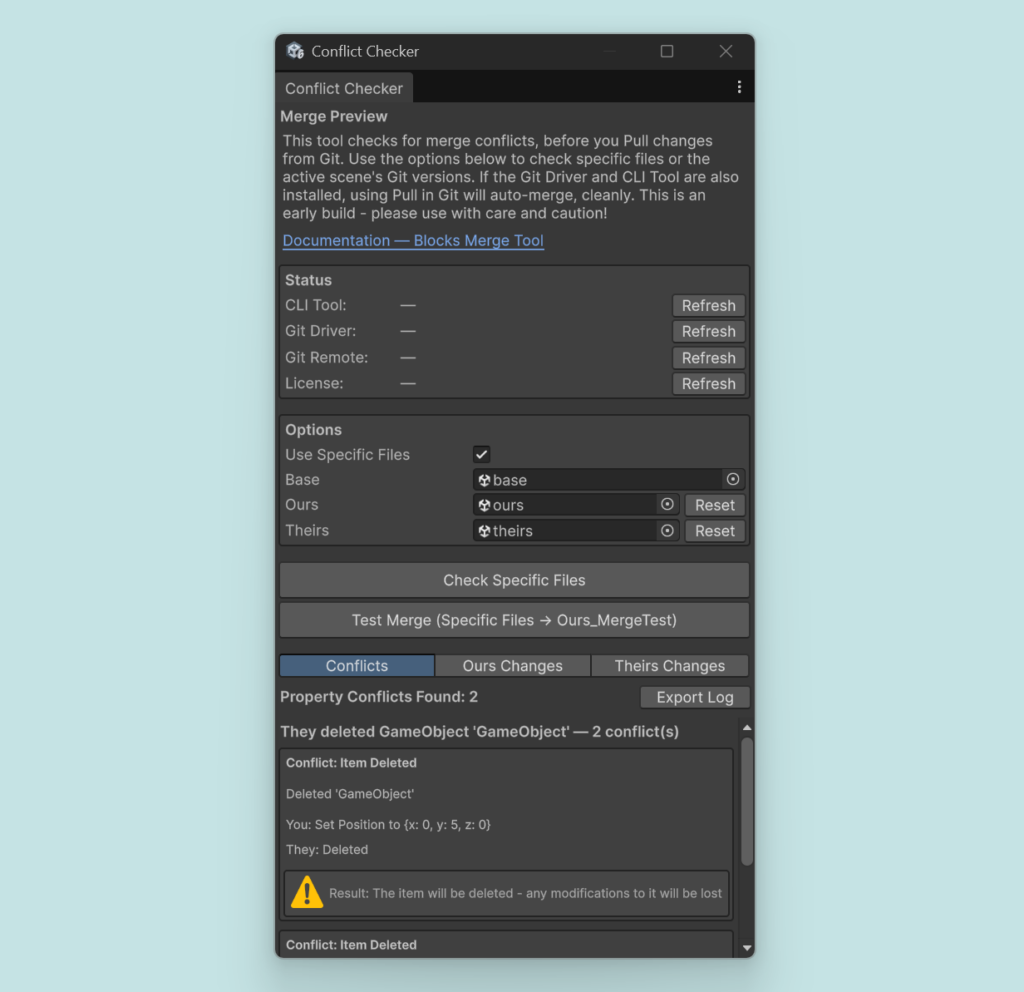
- Open the Conflict Checker window, “Windows > Overdrive > Conflict Checker”
- Check the status of each tool component with the “Refresh” buttons
- If you are testing local files (safer, simpler – no Git required), enable the “Use Specific Files” option and add them here (use “Reset” to overwrite Ours/Theirs with Base data)
- Click “Check … ” to see all differences, and use the toggles (Conflicts, Ours Changes, Theirs Changes) to view by category
- Click “Test Merge … ” to run a merge, without affecting your real files. This will save and output a new scene file, which you can open and check.
- Click “Export Log” to get a full log of changes – use this if you see something you didn’t expect, and want to ask for help on Discord/etc, it’s a big help for me!
FAQ
So this is an early build … what does that mean?
Make sure you are either in a non-production project, or use Git as usual.
What’s the new workflow I need to learn?
Nothing really. Just save, commit, pull, push. Clean, conflict-free merging happens automatically. Optionally, you can use the Merge Preview in-Unity to check and (soon!) stash certain changes.
Why the free early test?
Things are working well in my testing, but this is really important to get perfect, early. More testing early, means more chances to catch bugs or workflow issues before going live. Thanks for your help!
Troubleshooting
Git Fails to Connect
A git connection is required, so that you are never working on “stale” data. Don’t worry – this is standard setup, you just need to ensure your local git system is properly “keyed”.
- Open “Git GUI”
- Click “Help > Show SSH key”
- Click “Generate Key”
- Click “Copy to Clipboard”
- Go to https://github.com/settings/keys
- Click “New SSH Key”
- Type a title (anything you like)
- Paste the key you copied earlier (step 4)
- Click “Add SSH Key” to save this key
- Try refreshing the git connection status
- Still having issues? Ask on Discord! Feel free to DM directly (_gabrielw) if you prefer
- NEVER share your SSH key